
Before you can use your new SSD with your Mac® system, or install macOS® onto it, you have to initialize and partition it first. Follow the steps in this article if you are using OS X El Capitan or later. If you have not upgraded, follow our guide for earlier versions of OS X.
- If you are adding a drive to an existing setup, connect the SSD using a USB adapter or other external connection method and enter Disk Utility, or install the SSD internally into your system and enter Disk Utility via the OS X Recovery tool or your installation media. When the SSD is noticed by the Mac computer, you will see a message telling you that the drive cannot be read by this computer. In this message, click the Initialize button.
- The Crucial SSD will be listed in Disk Utility. Highlight the SSD and click the Erase button.
Note:
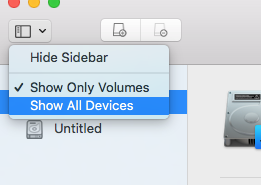
- In macOS High Sierra, we have had reports of the new SSD not appearing for initialization and erasing/partitioning.
- The new default for Disk Utility Show Only Volumes (a formatted partition of a drive) as seen below keeps the SSD from being seen. Toggling this to Show All Devices using the dropdown in the upper-left of the utility will expose the drive.
- After this has been done, the displayed list of disks does not automatically refresh. The easiest way to force a refresh is to close and reopen Disk Utility from your Utilities.
3. Type in the name you would like for the new partition and verify that it's set to "GUID Partition Table".
4. Verify that the selected format has defaulted to "Mac OS Extended (Journaled)".
5. Select Erase. The drive will now be partitioned and formatted.
6. When the Disk Utility is done, close it.
The SSD should now be visible on your desktop with the new name you gave it, as well as during the drive selection menu if your run an OS X installer.
If you need assistance with the physical installation of your SSD, we offer guides for installing a replacement SSD here.
©2026 Micron Technology, Inc. All rights reserved. Information, products, and/or specifications are subject to change without notice. Neither Crucial nor Micron Technology, Inc. is responsible for omissions or errors in typography or photography. Micron, the Micron logo, Crucial, and the Crucial logo are trademarks or registered trademarks of Micron Technology, Inc. OS X, macOS, and Mac are trademarks of Apple, Inc., registered in the United States and/or other countries. All other trademarks and service marks are the property of their respective owners.