
Why does my SSD seem to be wearing prematurely?
Since the advent of NAND flash storage devices, flash wear-out has been an issue that receives significant attention. To address this issue, most SSD manufacturers have included SMART (self-monitoring, analysis and reporting technology) attributes to track the amount of usage the SSD has experienced, compared to the expected lifetime of the drive. Usually, this is recorded as an attribute described as “percentage of lifetime remaining,” or sometimes, “percentage of lifetime used.” In monitoring this attribute, the user is advised to start thinking about replacing an SSD as the counter starts to approach 0% lifetime remaining. But what does this counter mean during the rest of the SSD’s useful life? What does it mean to have 90% lifetime remaining, or 50%?
What causes flash wear?
To understand why we even have a wear indicator, it’s important to know what causes SSD wear. At the most basic level, wear is caused by writing data, as in, saving files. Each time a NAND cell is written, it causes a tiny amount of wear. Eventually, after many, many writes, the NAND cell’s ability to retain data for significant periods of time is reduced (at the end of an SSD’s planned life, user data can still be retained for about one year in an unpowered state).
That’s simple enough to understand, but that’s not where the story ends. SSD wear and performance are both dependent on the nature of the workload presented as IO activity from the host computer, on the amount of “static” data that’s stored on the computer (or the amount of free space), and on how long data has been stored. As these variables change, performance will change, and the pace of wear will change.
There are physical reasons for this. NAND flash storage is organized in what SSD engineers call pages and blocks. A block of NAND flash can contain hundreds of pages, and a page contains 16kB of data, in most configurations. When a NAND block contains data, new data cannot simply be written over the present data. The block must first go through an erase step before it’s ready to receive new data. However, while NAND flash can be written a page at a time, it can only be erased a block at a time. All these complications mean that the SSD firmware is constantly managing the physical locations of stored data and rearranging data for the most efficient use of pages and blocks. This additional movement of stored data means that the amount of data physically written to the NAND flash is some multiple of the amount of data passed to the SSD from the host computer.
Write Amplification Factor (WAF)
Engineers describe the ratio of the amount of data written to the NAND flash compared to the amount of data written from the host computer to the SSD using the term Write Amplification Factor (WAF). A perfect, idealized storage system would have a WAF of exactly 1.0. In real SSDs used for desktop operating systems like Windows and MacOS, a typical WAF will be in the 2 to 4 range. This means that the SSD is writing two to four times more data than would be expected if the data was only written by the host computer.
That sounds bad, but SSD engineers account for this additional write workload when designing SSDs and the SSD firmware. WAF in this range will still allow the user a good long service time for the SSD.
What causes a higher WAF?
Despite the best SSD designs, sometimes WAF can be higher than expected or typical. Again, this is very workload dependent. For most desktop users, their workload will change significantly over time. Sometimes, the workload is heavy, sometimes it’s quite light. Here are some conditions which can cause higher WAF:
- When a drive is full or nearly full, background operations work significantly harder to make sure that there is always free space so that it is ready to receive new data. If increased wear is a concern because the daily workload remains high even when the drive is full, then leaving some unused space can help, when possible. Also, a bigger SSD will experience proportionally less wear under the same workload. A 1000GB drive will last twice as long as a 500GB drive, given the identical workload and operating conditions.
- Small file transfers can cause higher WAF. High frequency of copying, deleting, and manipulating large numbers of small files such as image files or text documents can cause increased WAF. This is because each file is only a small portion of a NAND block, so these small data structures are more likely to be aggregated and moved by the SSD firmware. Larger files, like video files, need to be moved less often because they can fill entire blocks.
Although much of what controls WAF is buried within operating systems and file systems, there are some items that can change based on user input.
- SSDs like large, sequential workloads better than small, random workloads. In real life, this means they prefer large files over a lot of small files that are deleted or modified frequently.
- Leaving some unused space can significantly help the SSD to manage stored data efficiently. If an SSD is regularly at or above 90% full, it would be a good idea to either delete some unused files, or perhaps consider using a bigger SSD.
- Normally, it’s not recommended to use consumer grade SSDs in large RAID arrays, but if such a hardware-RAID deployment is desired, large transfer sizes are preferred. Exact deployment is left to the user’s discretion, but a good rule of thumb is to use a transfer size of 128kB times the number of physical drives in the array. Such calculations are usually not necessary on small software-based RAID deployments within a PC.
Ensuring that TRIM runs efficiently
Windows® 10 is designed to operate SSDs efficiently, but the end user can help this process. TRIM is an important function which allows the SSD’s background operations to operate efficiently, and can minimize the WAF discussed above. Windows will run TRIM periodically, but in some deployments, it may not run very frequently. The user can trigger TRIM to run frequently by running the drive Optimize feature in Windows, as follows:
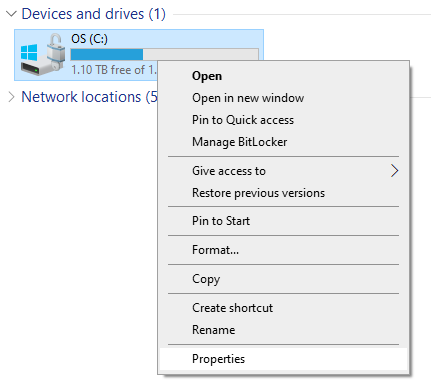
First, with a window open for My PC, right-click on the SSD drive and select Properties, as shown below:
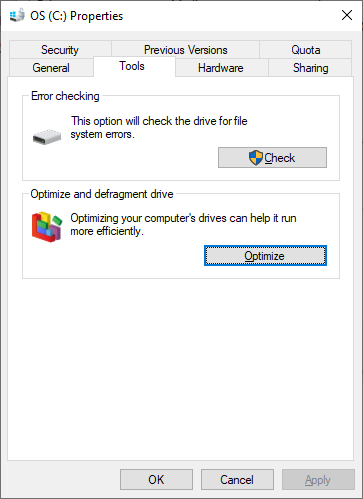
With the Properties window open, select the Tools tab, and then click on Optimize:
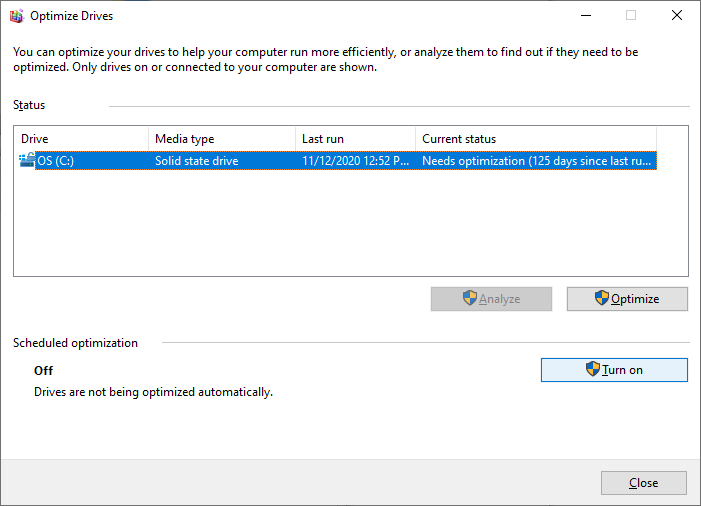
The Optimize menu is shown below. At any time, the user can click on Optimize to run the TRIM function. Also in this menu, there is an option to Turn on scheduled optimization, which will run TRIM on a schedule determined by the user.
Finally, in the schedule window, the user can select the check-box to Run on a schedule, and then click Choose to select the targeted SSD(s).
This should help to keep the SSD’s performance consistent and can help minimize wear on the NAND flash.
©2023 Micron Technology, Inc. All rights reserved. Information, products, and/or specifications are subject to change without notice. Neither Crucial nor Micron Technology, Inc. is responsible for omissions or errors in typography or photography. Micron, the Micron logo, Crucial, and the Crucial logo are trademarks or registered trademarks of Micron Technology, Inc. Microsoft and Windows are trademarks of Microsoft Corporation in the U.S. and/or other countries. All other trademarks and service marks are the property of their respective owners.